
Inbound email security includes detailed transparent insights and message headers to help you understand why an email was quarantined.
These insights allow administrators to quickly validate detections, investigate suspicious messages, and confidently decide whether to release, block, or allow future emails.
This article explains where to find message details in the dashboard and how to interpret what you see.
AI-generated transparent insights
AI-generated insights summarize the primary risk factors identified in the message.
These may include:
-
Indicators of impersonation or spoofing
-
Abnormal sender behavior
-
Suspicious intent or urgency
-
Domain or identity anomalies
These insights are designed to be readable and actionable, not technical jargon.
Example: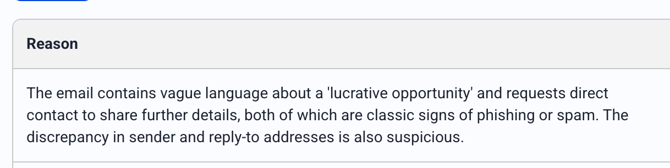
Message headers
Message headers provide technical metadata about how the email was sent and routed.
Headers can help you:
-
Verify the true sending domain
-
Confirm authentication results (SPF, DKIM, DMARC)
-
See routing paths and sending servers
Where to find message headers and insights
You can review message details from the quarantine and in statistics.
From the quarantine
-
Log in to your Paubox dashboard
-
Navigate to Inbound email security
-
Open Quarantine
-
Select a message, then click on Original message
- Select the header tab to view the message header
- AI insights are appended at the top of the message header
From the Statistics page
View AI-generated insights from the statistics page.
-
Navigate to Inbound email security
-
Open the Statistics page
- Click on one of the statistics categories (available for Spam, Gray, Phish, ExecProtect, Virus, Virus Macro, DLP) to see insights for emails flagged by each category