
The Paubox user dashboard allows you to manage your individual email security settings and review messages held in quarantine.
Accessing your dashboard
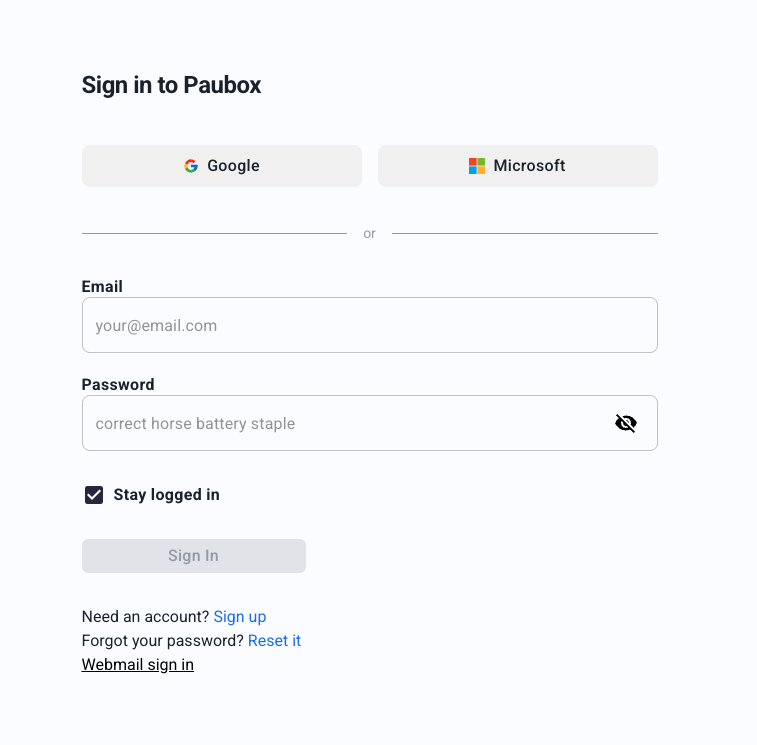
To manage your settings, login to the Paubox dashboard. You will either get an email invite to access your dashboard or you can login using your Google Workspace or Microsoft 365 credentials (check with your admin on which option to expect).
-
Navigate to the Paubox login page
-
Enter your work email address and password OR
- Choose Google or Microsoft to login
-
Viewing your personal quarantine
The dashboard provides a dedicated view of messages flagged as potential spam or security threats directed to your address.
-
Individual scope: You will only see mail intended for your specific email address; you do not have access to messages sent to other colleagues or the organization at large.
-
Search and filter: Use the search bar to find specific messages by searching for the sender, recipient, or subject line.
-
Reviewing content: Click on any message to view it and determine if the message is legitimate.
Releasing or deleting quarantined messages
When you identify a message in your quarantine, you can take several actions to manage how Paubox handles that email and future correspondence from that sender.
- In your quarantine, select the checkbox next to the desired message(s)
-
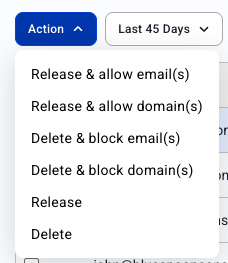
Click the Action button and select one of the following options:
-
Release & allow email(s): Delivers the message to your inbox and adds the specific email address to your personal allow list
-
Release & allow domain(s): Delivers the message and adds the entire sending domain to your personal allow list
-
Delete & block email(s): Removes the message and prevents future emails from that specific address
-
Delete & block domain(s): Removes the message and blocks all future emails from that entire domain
-
Release: Delivers the selected message to your inbox once without modifying your allow/block lists
-
Delete: Removes the selected message from your quarantine
-
Setting up quarantine reports
Quarantine reports are automated email summaries that notify you of any blocked messages without requiring you to log in to the dashboard manually.
-
Log in to your Paubox dashboard
-
Click on your name in the left nav, then Profile
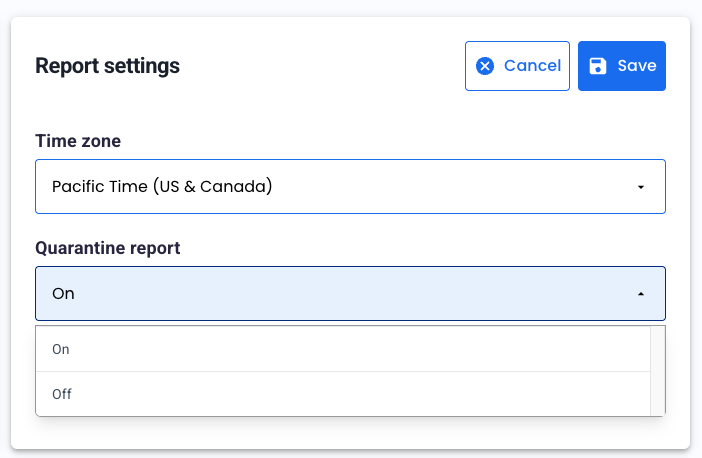
- Click Edit in the Report settings
- Select your time zone
- Select On under Quarantine Reports
- Click Save
Using quarantine report actions
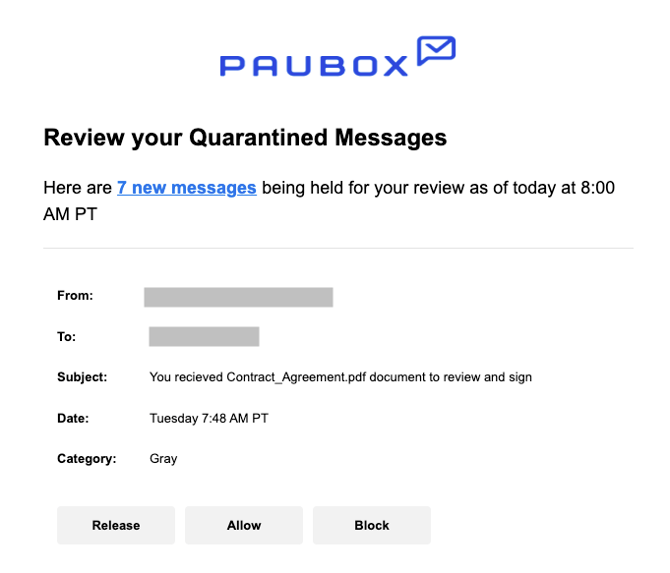
When you receive a quarantine report in your inbox, each listed email will include a set of actions. Selecting an action will immediately update the status of that message in the Paubox system.
-
Release: Releases the email from quarantine and delivers it to your inbox
-
Allow: Delivers the email and adds the sender to your personal "Allow list" to ensure their future messages are not filtered
-
Block: Confirms the message is unwanted and adds the sender to your personal "Block list"
Note: Actions taken within your quarantine report or dashboard, such as allowing or blocking a sender, apply only to your individual mailbox and do not affect the email flow of your coworkers.
If you have any questions, please reach out to us at support@paubox.com.